


Raise your hand if you’ve ever dragged the corner of a logo just a little too far and ended up with a pixelated mess. Or save a transparent PNG for your website banner, only to find an awkward white box where the background should be. It happens, especially when you’re busy and working across a dozen channels.
If you’re a freelancer, designer, or scrappy social media manager, using a PNG resizer the smart way can save you from blurry exports and off-brand visuals. Tiny slip-ups in your PNG workflow can tank the polished look you’ve worked so hard to build. Luckily, they’re super easy to fix with the right tool and a few pro tips.
Meet Pippit: your all-in-one creative workspace that makes resizing PNGs fast, clean, and stress-free — whether you’re prepping Etsy thumbnails, TikTok overlays, or your next epic merch drop. Let’s troubleshoot the most common mistakes so your brand stays crisp, consistent, and ready to wow.
The stretch-and-squish slip-up: Watch your aspect ratios
Hands down, the biggest mistake when resizing PNGs is ignoring aspect ratio. Stretching a square logo into a rectangular website header? Recipe for awkward squishing. Shrinking a wide product shot into a narrow Story highlight? Say goodbye to your balanced composition.
The fix? Always start with the correct aspect ratio for where your PNG will live. Need a square for Etsy? Great. A 9:16 vertical overlay for TikTok? Even better. Pippit’s presets take the guesswork out — no more accidental warping that makes your visuals look DIY.
- The fuzzy export fiasco: Double-check resolution settings
Ever downloaded a resized PNG, popped it into your Reel, and thought: ‘Why does this look so fuzzy?’ Chances are, you didn’t export it at a high enough resolution.
When using your PNG resizer, always check your export settings. Bigger isn’t always better — but you want to match the resolution to where the graphic will be used. Social media thumbnails need less resolution than print or large banners. Pippit lets you preview before you export, so you can catch fuzziness before it goes live.
- The transparent background tragedy: Keep your transparency intact
One of the biggest perks of using PNGs is that transparent background — perfect for watermarks, logos, and stickers you can drop onto any background or video. But if you resize with the wrong tool or export in the wrong format, poof! That transparency can get flattened into a solid colour block that ruins your design.
Always use a tool like Pippit that keeps your PNG’s alpha channel (that fancy term for transparency) intact. And double-check that you’re saving in the PNG format — not accidentally converting to JPG, which doesn’t support transparent layers.
- The ‘one size fits all’ problem: Smart resizing saves you time
Here’s where most busy creators trip up: they make one PNG version and use it everywhere. It might look okay as a website header but turn into a blurry mess as an Instagram highlight icon.
Instead, think of resizing as a smart time-saver. With Pippit, you can take one master file and use the PNG resizer to generate different sizes for each channel: Etsy, TikTok, Reels, newsletters — you name it. It’s way faster than reinventing the wheel every time you post.
- When static meets motion: add polish with overlays
Your PNGs don’t just live in static posts. Many creators use PNG overlays in video clips, too — like adding a subtle watermark to a TikTok or an intro logo to a YouTube Short.
If you’re experimenting with a lyric video maker, you can pop your perfectly sized PNG logo into the corner, so your brand stays visible when your lyrics hit someone’s FYP. No fuzzy logos, no awkward placement — just clean, pro-level branding.
Your three-step fix: how to resize PNGs with Pippit
Alright, let’s make sure you avoid these common mistakes once and for all. Here’s how to resize your PNGs the smart way with Pippit:
Step 1: Upload the PNG image
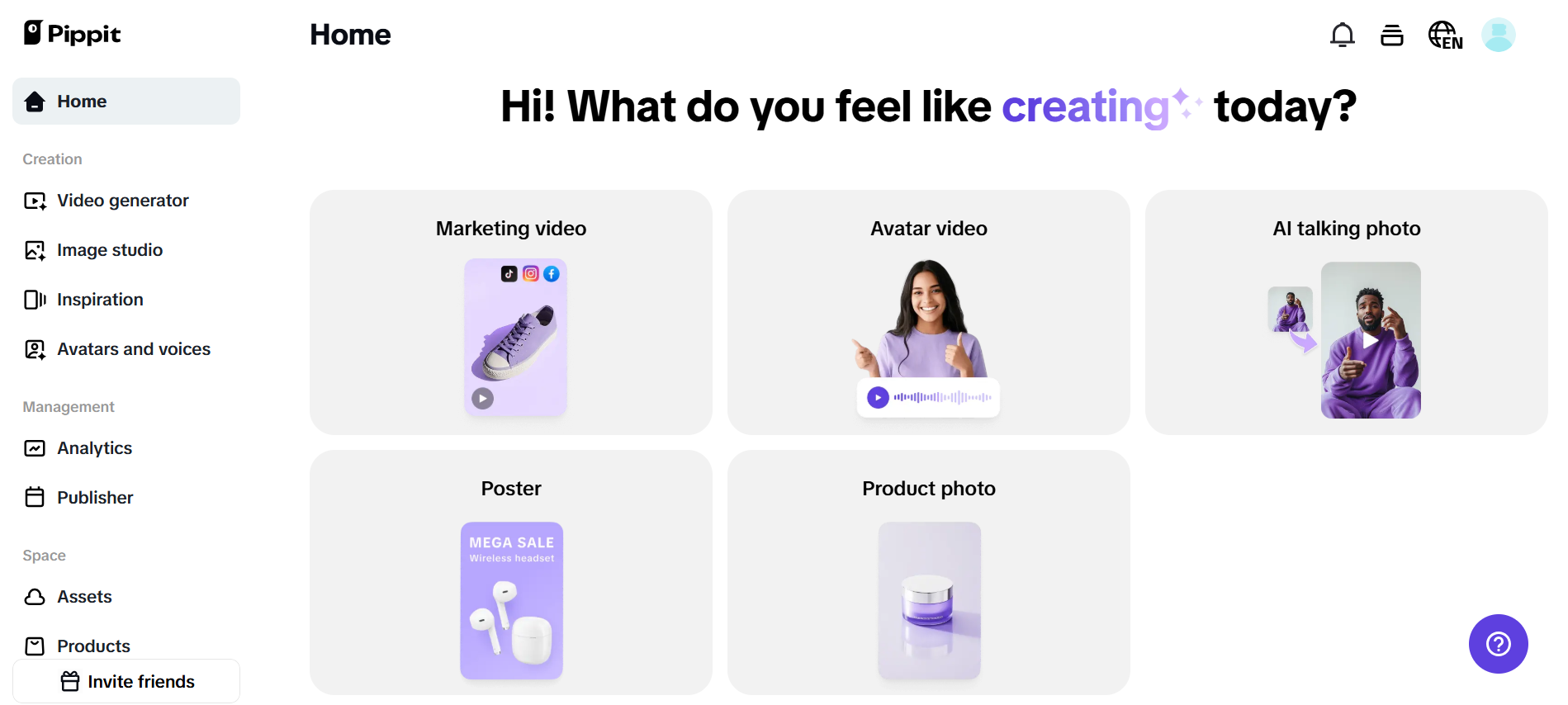
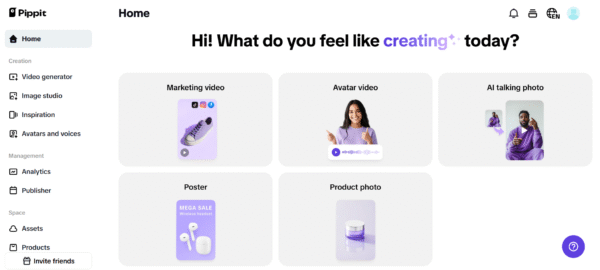
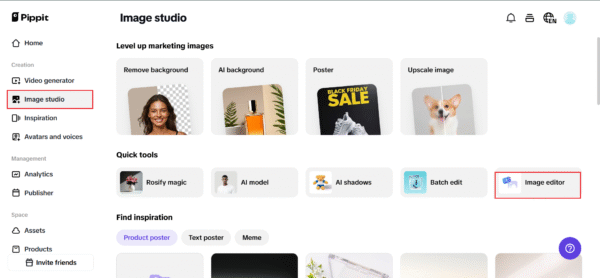
Try it for free by logging into Pippit and navigating to the ‘Image Studio.’ Upload your PNG file into the ‘Image Editor’ section. This unlocks simple but powerful tools that make resizing clear and stress-free — no design degree needed.
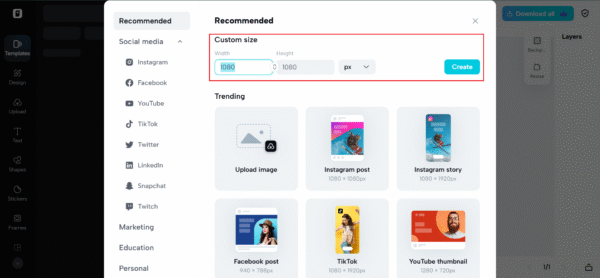
Step 2: Select the desired aspect ratio
Choose from Pippit’s smart aspect ratio presets or input your own custom dimensions. Whether you need a square icon for Instagram, a banner for your site, or a Story highlight that looks great in a circle, Pippit keeps your graphics crisp while protecting your original proportions.
Step 3: Review and save
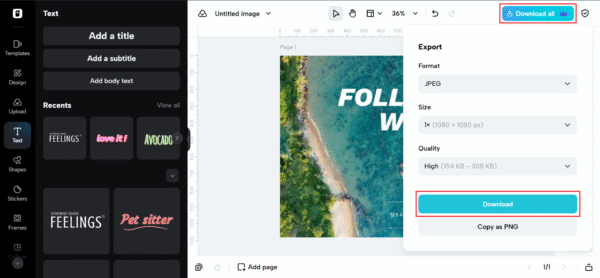
Use the preview feature to check for squished edges, fuzziness, or accidental background fills. Make any last tweaks, then click ‘Export’ to download your resized PNG in high resolution — transparency intact, ready to shine on any platform.
Your PNGs deserve better: get pixel perfect every time
So many creators pour time and energy into great content, only to see it dragged down by fuzzy overlays or off-center watermarks. The difference between good and great visuals often comes down to these tiny tweaks.
A clean PNG that’s sized perfectly for each use case sends a powerful signal: this brand has its act together. It keeps your highlights looking sharp, your thumbnails eye-catching, and your watermarks unobtrusive yet impossible to miss.
Keep your brand crisp with Pippit
If you’re tired of blurry exports and weird aspect ratios, it’s time to get pixel perfect — and Pippit makes it ridiculously easy. Use the built-in PNG resizer to clean up your visuals for any channel, any format, any audience.
And don’t stop at static! Try your new resized PNGs as overlays on your lyric clips or Shorts. Whether you’re experimenting with a fresh lyric video generator or remixing your TikToks, your branding stays sharp and your vibe stays on point.
Ready to look as pro as you feel?
Try Pippit free today — resize smart, export clean, and let your visuals do the talking.